Supervise a dynamic workflow
A dynamic workflow turns Slo into a small team. An orchestrator splits the job into phases and gives each phase to its own sub-agent: a separate slo process with a clean context. That's great for long jobs, and it raises the obvious questions. What is it doing? Is it stuck? How much is left? What went wrong?
This guide answers each of those.
1. Before a long run, check your timeouts
The defaults are set for long work. Only change them if you know why:
export SLO_STREAM_INACTIVITY_TIMEOUT_SECONDS=10800   # orchestrator can think for up to 3h without output (default)
export SLO_SUBAGENT_INACTIVITY_TIMEOUT_SECONDS=7200  # a sub-agent silent for 2h is treated as hung (default)
export SLO_SUBAGENT_MAX_CONCURRENCY=6                # sub-agents at once (default 4)
The full list is in Environment variables.
2. Start it
There are two ways, and the words you use decide which one you get.
In your session (you wait). Say "dynamic workflows":
"Use dynamic workflows to run the code-test-review workflow for task 12.b in specifications/12-refunds/."
The orchestrator runs inside your current session. Your prompt is busy until it finishes.
Detached (you keep working). Add "headless", "detached", "independent", "in the background" or "without blocking":
"Run the code-test-review workflow for task 12.b detached."
Slo launches the orchestrator as its own process and hands you back the prompt within seconds, with a workflow id like wf-3fa2. Progress arrives as notes in your session. You can have two detached workflows running per session at once.
Either way, the more your request looks like a good brief, the better. The orchestrator writes each sub-agent a self-contained prompt from yours, so boundaries you state are boundaries every sub-agent gets.
3. Watch it
When the first sub-agent starts, Slo opens a new terminal window running slo visualize. If it can't open one, it prints the command instead:
slo visualize --session <session-id> --follow
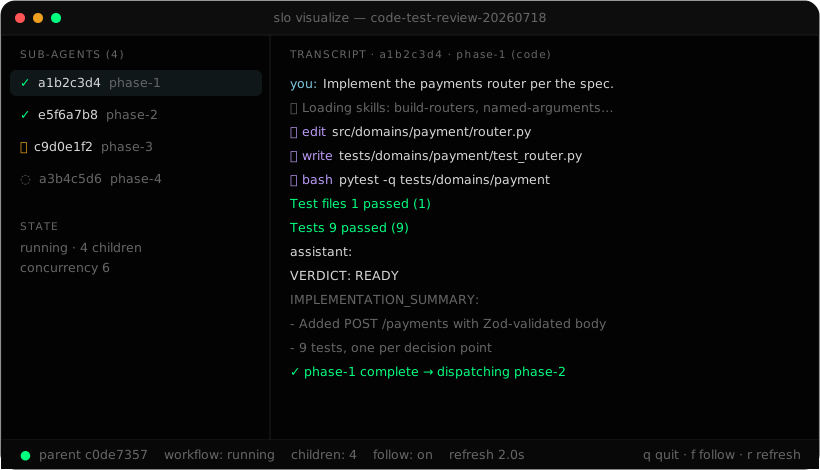
The left side lists every sub-agent: ⏳ running, ✓ completed, ✗ failed, ⊘ aborted, ◌ pending. Pick one with the arrow keys and Enter to read its transcript.
| Key | What it does |
|---|---|
d | Show the diagnostics pane (the sub-agent's stderr). Start here when something fails. |
o | Show the orchestrator's own prompt and context. |
v | Switch between the transcript and the exact command that launched the sub-agent. |
t | Cycle the display format. |
f | Turn live updates on or off. |
r | Refresh now. |
q | Quit. The workflow keeps running. |
Closing the visualizer never affects the workflow. You can open it again at any point, including after the run is over.
4. Check on detached workflows
In the session that launched them:
/workflows
Each row shows the id, its state (launching, running, completed, failed, aborted or stalled), when it started and how many sub-agents are live.
Stalled means the orchestrator process has died without finishing: no heartbeat for 45 seconds and no running process. It won't fix itself.
5. Stop, dismiss, resume
/workflows abort wf-3fa2     stop it and all its sub-agents
/workflows resume wf-3fa2    restart a stalled or failed workflow from its history
/workflows dismiss wf-3fa2   acknowledge a stalled one you don't want back
abort asks the whole process group to stop, and force-kills it after 5 seconds if needed. resume replays the orchestrator's history and carries on with the original brief.
For an in-session workflow, Ctrl+C or /abort stops it.
6. When a sub-agent fails
The orchestrator retries a failed phase once. If it fails again, find out why in this order:
- Read the orchestrator's summary. Each failed sub-agent's answer is included. If it died without answering, you'll see the last lines of its stderr.
- Open the diagnostics pane. In
slo visualize, select the sub-agent and pressd. - Read the files. Everything is on disk:
~/.slo/sessions/history/<orchestrator-session>/children/<sub-agent>/
├── stdout.jsonl     the sub-agent's event stream
├── stderr.jsonl     errors and lifecycle messages
└── status.json      final state and exit code
Or ask Slo, which is often fastest:
"Why did the two sub-agents in the last workflow fail? Check their stderr and status files and give me specific reasons."
The common causes, and what to do about them, are in Troubleshooting.
7. Know when it's done
Don't ask "are we done?" and trust the answer. Ask Slo to check against the spec:
"Is task 12.b complete against specifications/12-refunds/? List what's done, what's partial and what's missing, with file paths."
Slo has a completion-check skill for exactly this. It returns a completion percentage, what's implemented, and what's left with the files involved. The code-test-review workflow runs the same check itself and loops until it reaches 100%.